Cases and tasks
Cases track issues that take more than one contact to resolve. Tasks are follow-ups with a reminder date; at that moment the reminder arrives in Flex as a real task. Both are attached to a customer and appear under Work Items in the customer panel.
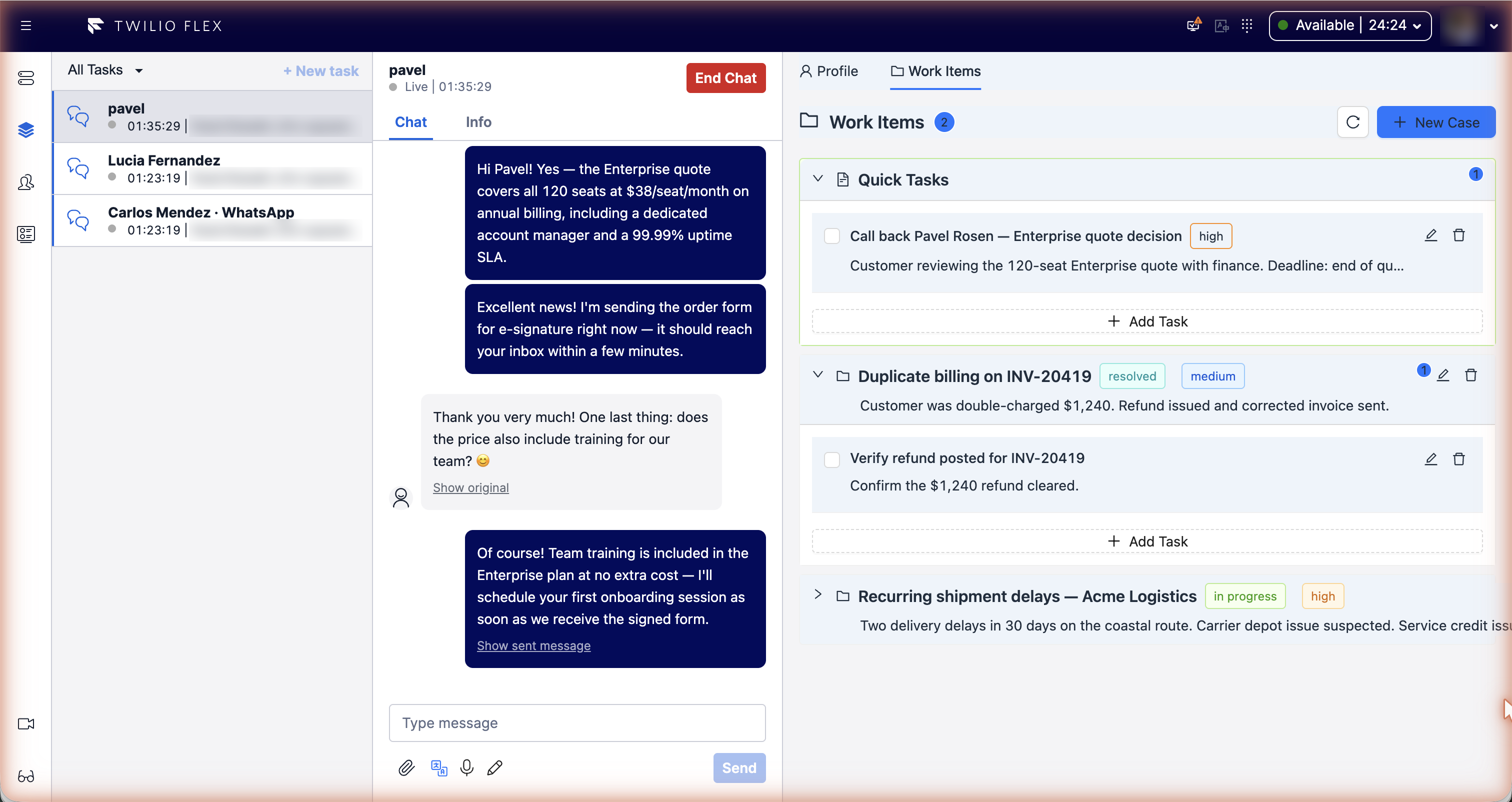
Work Items
The Work Items section of the customer panel shows the customer's cases, each with its tasks, and Quick Tasks: tasks that don't belong to a case. Admins see the same section in the customer detail on the CRM page.
- New Case creates a case.
- Add Task adds a task to a case; Add Quick Task adds one without a case.
- Each task has Mark as done / Mark as not done, Edit task and Delete task.
Cases
| Field | Values |
|---|---|
| Subject and description | Free text |
| Priority | Low, Medium (default), High, Urgent |
| Category | General Inquiry, Billing, Technical Support, Complaint, Feature Request, Other |
| Due date | Optional |
| Status | Open, In progress, Pending, Resolved, Closed |
Each case gets a number in the form CASE-YYYY-MMDD####, and counts of its tasks and open tasks.
Deleting a case also deletes its tasks.
The case form in the panel sets subject, description, priority, category and due date. New cases start as Open and are assigned to the agent who created them.
Tasks
| Field | Values |
|---|---|
| Title and description | Free text |
| Priority | Low, Medium, High, Urgent |
| Reminder date and time | Defaults to tomorrow; time in 15-minute steps |
| Route to | Assigned Agent (the agent creating or editing the task) or Queue |
| Status | To do, In progress, Done, Cancelled |
Tasks have no separate due date: the reminder is the due date, and a task is overdue when its reminder has passed.
Set both the date and the time. If only a date is given, the reminder falls back to 23:59 UTC on the current day.
Follow-up reminders
A task with a reminder comes back as a Flex task at the reminder time. "Call me back on Thursday" doesn't depend on anyone remembering it.
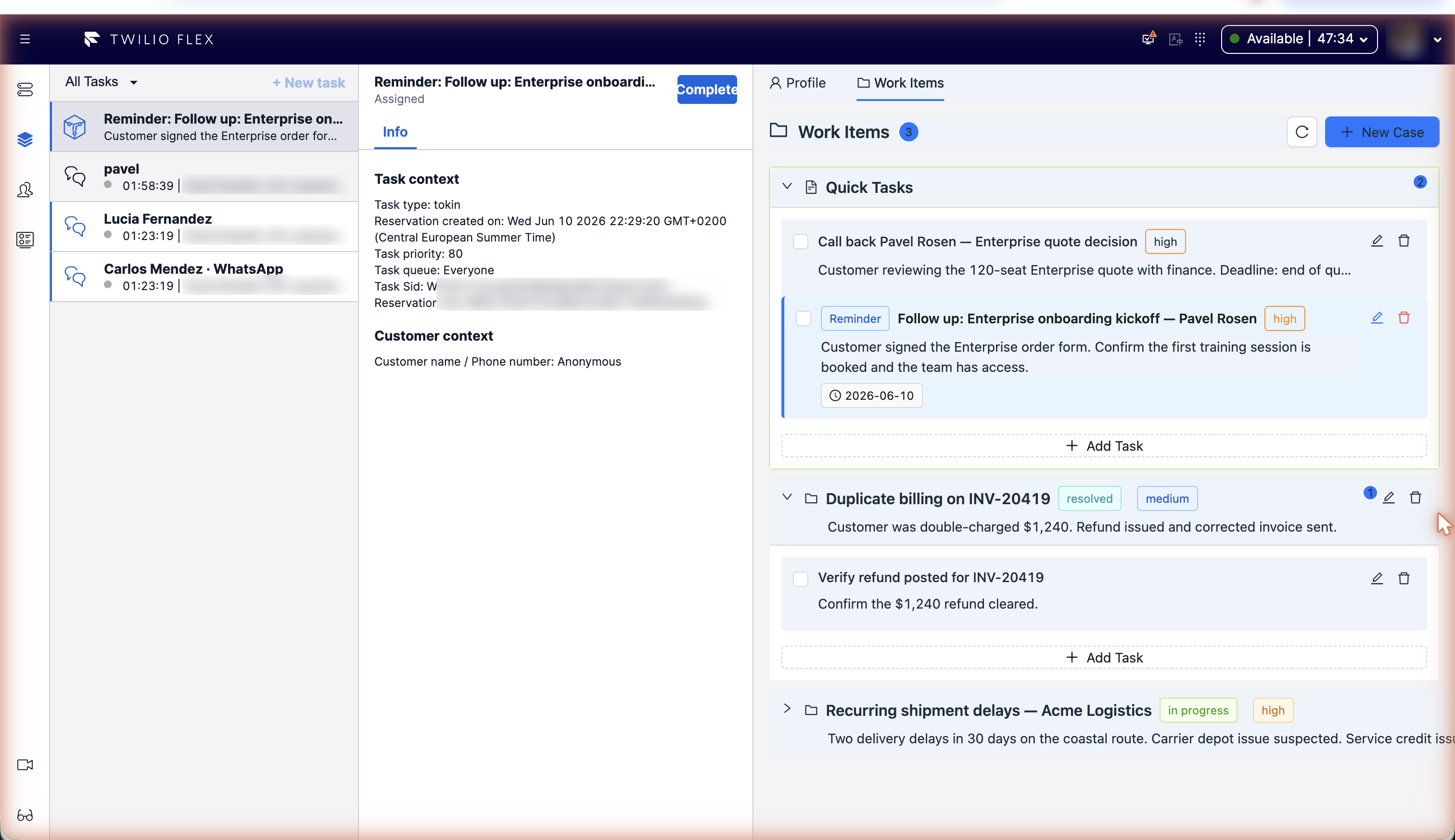
- When a task is saved with a reminder in the future, the reminder is scheduled.
- Floor Walker checks for due reminders every 15 seconds and creates a TaskRouter task on the Floor Walker task channel through the Floor Walker Task Routing workflow.
- The reminder is routed to the agent the task is assigned to (for 300 seconds), then to any agent in the default queue. In the current version a task is always assigned to the agent who created or last edited it, even when Queue is chosen, so reminders go to that agent first.
- The agent sees it in the task list as Reminder: followed by the title. Accepting it opens the customer in the panel, scrolls to Work Items, expands the case and highlights the task with a Reminder label.
- Complete the Flex task when done. Completing the Flex task does not mark the CRM task as done; tick it in Work Items.
Because reminders are ordinary TaskRouter tasks, queues, capacity and reporting apply to them like to any other task. Their priority follows the task's priority (Low 10, Medium 50, High 80, Urgent 100).
Completing or cancelling a task cancels its reminder; reopening it schedules a future reminder again. If creating the Flex task fails, Floor Walker retries after 1, 2, 4 and 8 minutes and then gives up.
Setup
- The installation creates the Floor Walker task channel and the Floor Walker Task Routing workflow in your TaskRouter workspace. Give agents capacity on the Floor Walker channel so reminders can reach them.
- Don't delete the channel or the workflow: reminders can't be delivered without them.
The Tasks tab
Admins have a Tasks tab on the CRM page with all follow-up tasks:
- My Tasks or All Tasks.
- A status filter (active, pending, in progress, completed, all) and quick filters All, Overdue, Due today.
- Search tasks, and Mark as completed on each row.
- Totals of tasks, customers, cases with tasks and overdue tasks.
Agents without the admin role see tasks per customer, in the panel next to a task.
Permissions
Any agent can create, edit and complete cases and tasks for the customer on their task.