Customer CRM
Floor Walker keeps your customer database and shows it inside Flex. Agents see the customer next to every task; admins search and manage customers on the CRM page.
The customer panel
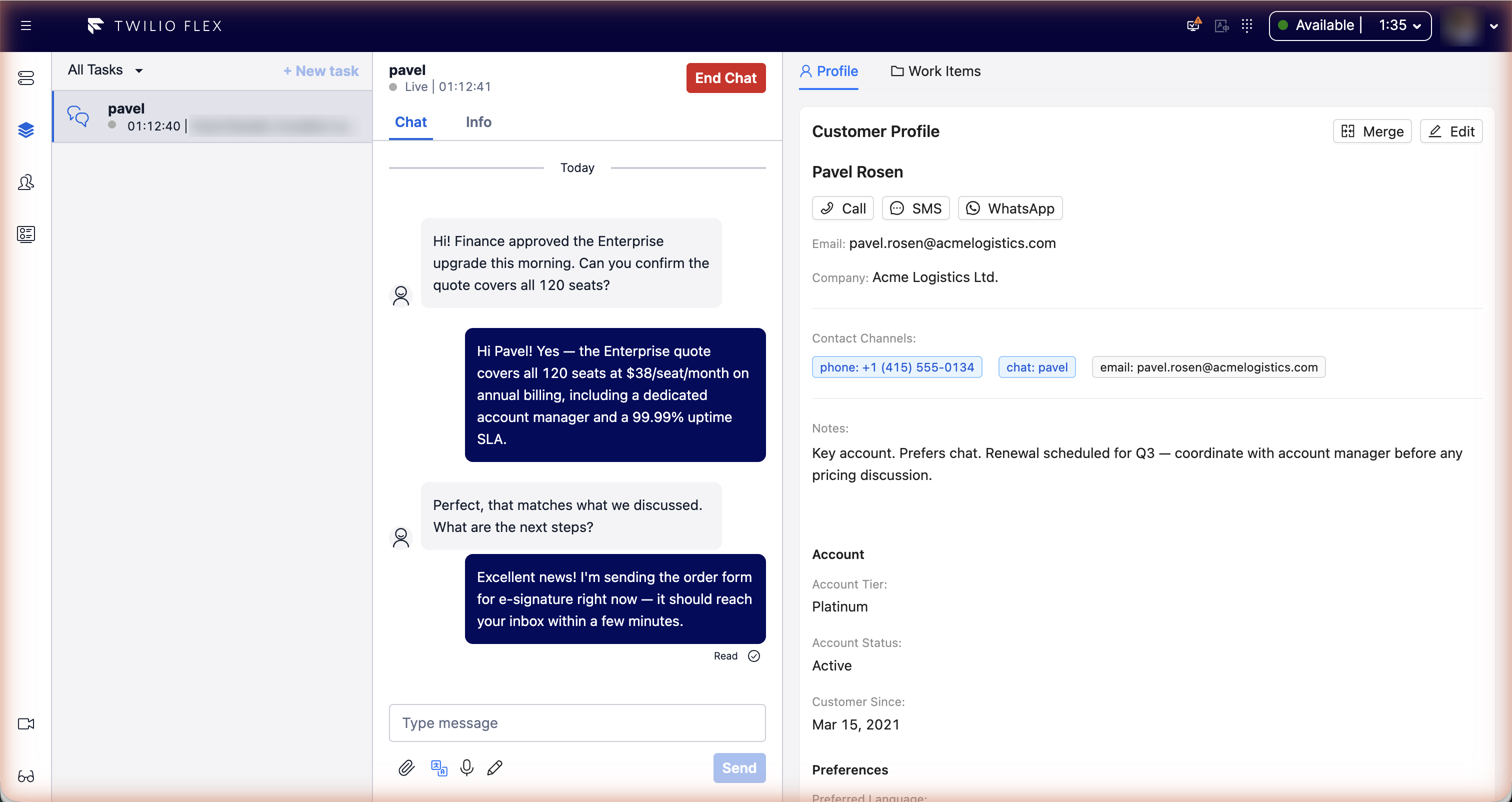
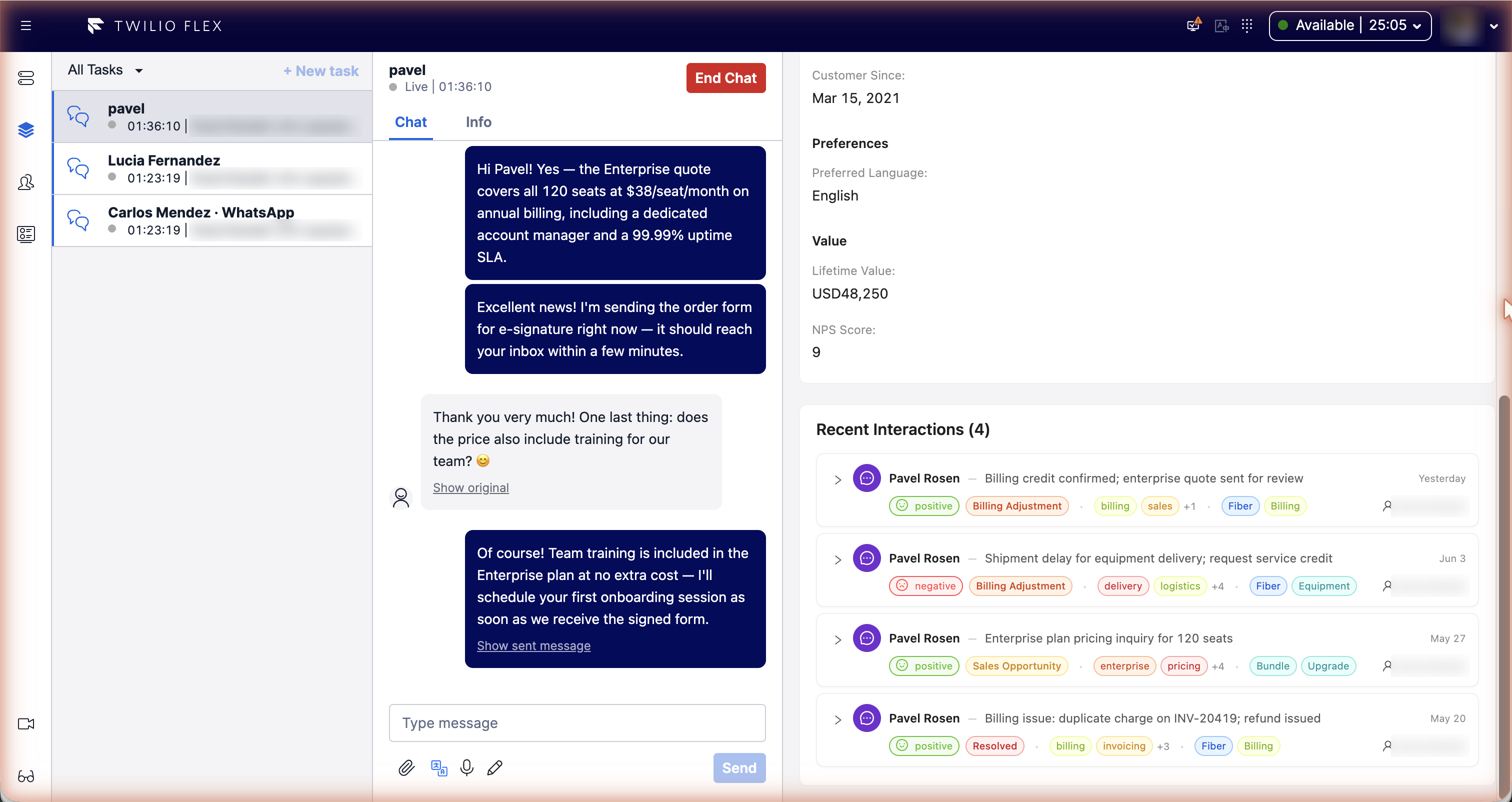
When an agent opens a voice, chat, SMS, WhatsApp or web chat task (or a follow-up reminder), the panel to the right of the task shows the customer. It replaces the standard Flex CRM area and has, from top to bottom:
- Identity: name, the identifier the customer contacted you from (with Copy), and pills for the channels the customer has used. Buttons to Edit details and to merge the profile with another customer.
- Details: email, company, last interaction, every contact channel (alias) on file, and notes.
- Custom Fields: the fields your admins defined, grouped into sections. Read-only here; edit them with Edit details.
- Work Items: the customer's cases and follow-up tasks. See Cases and tasks.
- Recent Interactions: the last 10 calls and conversations, each with its AI summary. Expand one to see the full analysis, or open the transcript. See Interactions and AI insights.
How the customer is found
The plugin takes an identifier from the task and looks it up:
| Task | Identifier used |
|---|---|
| Inbound call or conversation | The caller's number or address (from, then customer_phone, customerAddress, customers.email) |
| Outbound call | The number dialled (outbound_to, then to) |
| Dialer call | The lead's phone number |
| Follow-up reminder | The customer ID stored on the reminder |
Identifiers are normalised before matching: a whatsapp: prefix is removed so WhatsApp and phone
contacts from the same number match, phone numbers are reduced to + and digits, and email addresses
are lower-cased.
If no customer matches, one is created automatically when the agent accepts the task, using the name on the task (or "Unknown"). A profile created this way can show a Pending verification card with Update details and Search & merge, so the agent can fill in the details or attach the contact to an existing customer.
If a task carries no phone number, email or customer ID, the panel says so and shows no customer.
Editing a customer
Edit details switches the card to a form with name (required), email, company, notes and the custom fields. Custom-field values are checked when saved (format, required fields, allowed options) and errors are shown next to each field. A new email address is also added to the customer's contact channels.
Calling and messaging the customer
If the customer has a phone number and outbound messaging is enabled, the profile shows Call, SMS and WhatsApp buttons. With several numbers on file, each button first asks which one.
- Call starts an outbound call from Flex, using the configured default caller ID.
- SMS opens a form with sender, recipient and message (up to 1600 characters).
- WhatsApp opens a form with sender, an approved template and its variables, and a preview. Outside the 24-hour customer service window a template is required; inside it, a free-form message (up to 4096 characters) can be sent instead.
SMS and WhatsApp messages start a new conversation that is routed back to the agent who sent it.
These buttons are controlled by screen_recording.outbound in the Flex configuration: enabled,
voice_enabled, sms_enabled, whatsapp_enabled (all on by default) and the default caller ID and
senders (default_voice_caller_id, default_sms_sender, default_whatsapp_sender).
Identity resolution and merging
A customer can be reached through several identifiers: phone numbers, email addresses, chat identities. Each identifier (alias) belongs to exactly one customer, and every task or interaction with that identifier is attached to that customer.
Contact aliases
On the CRM page, a customer's Contact Aliases section lists every identifier. Admins can add one (type Phone, SMS, WhatsApp or Email, and the value) or remove one. The primary identifier is marked Primary and can't be removed. An identifier that already belongs to another customer can't be added; merge the two customers instead.
Merging duplicates
When the same person ends up with two profiles (for example, one created from a phone call and one from a chat), merge them from the customer panel:
- Use the merge button on the profile, or Search & merge on a pending profile.
- Search for the existing customer and select it.
- Confirm. The customer of the current task is kept: its name, email and notes stay, and it receives all contact channels, interactions, cases, tasks and recordings of the other profile.
The other profile is marked as merged and can't be merged again; lookups by its old identifiers lead to the surviving profile. Merging can't be undone from the UI.
There is no automatic duplicate detection: duplicates are merged by hand.
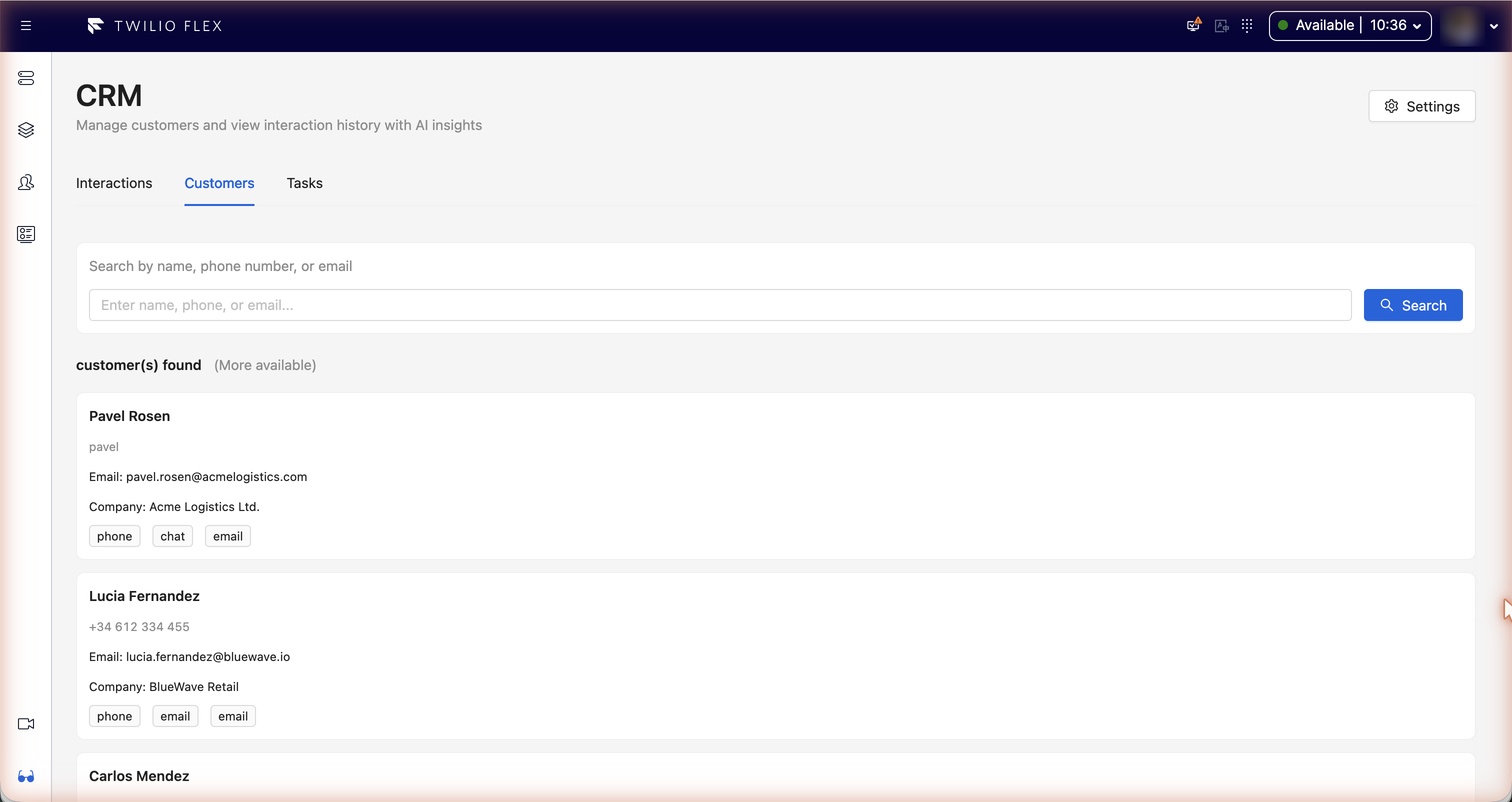
The CRM page
Users with the Flex admin role get a CRM item in the side navigation (when show_admin_view is
on in the screen_recording configuration). The page has three tabs:
- Interactions: all calls and conversations with their AI analysis and filters. See Interactions and AI insights.
- Customers: search and customer detail, described below.
- Tasks: follow-up tasks across all customers. See Cases and tasks.
The Settings button opens CRM Settings with the Prompt Templates and Custom Fields tabs.
Searching customers
Type a name, phone number or email and press Enter. An exact phone number, email or customer ID is found directly; otherwise the search matches part of the name, email, company, any contact alias and any custom field marked Searchable. Merged profiles are hidden. The first 50 matches are shown, newest first.
Customer detail
Selecting a customer shows when they became a customer, their last contact and number of interactions, with these sections:
- Profile: contact details, notes and custom fields, with Edit profile.
- Contact Aliases: see Contact aliases.
- Work Items: cases and tasks, as in the agent's panel.
- Interactions: calls and chats with their AI analysis, newest first, with buttons to read the transcript and play the screen recording.
Custom fields
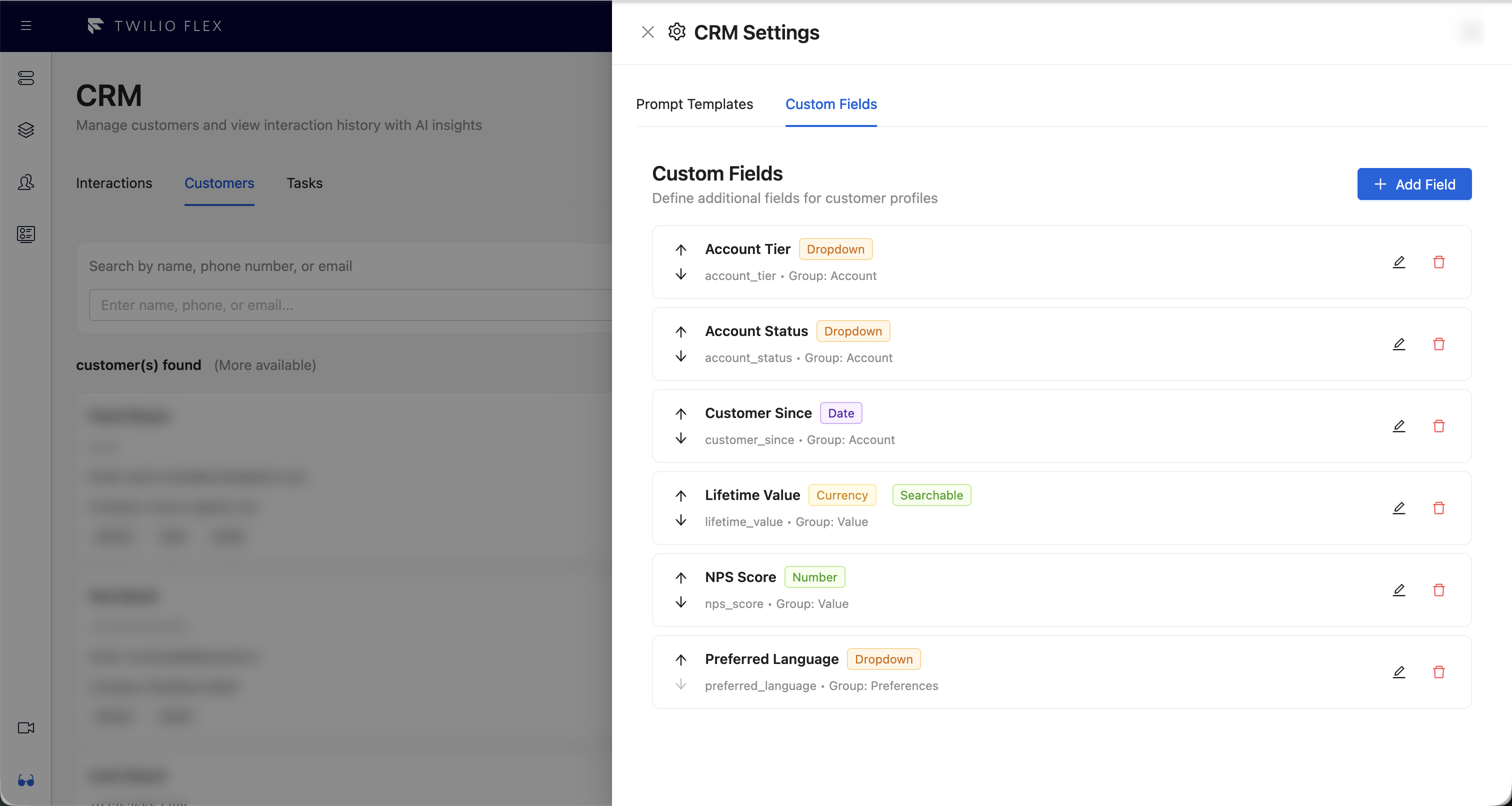
Admins define extra customer fields in CRM Settings, Custom Fields. Fields apply to all customers and show up in the customer panel, the edit form and the customer detail.
Field types
Text, Text Area, Number, Currency, Date, Date & Time, Dropdown, Multi-Select, Checkbox, Phone, Email and URL.
Field settings
| Setting | Notes |
|---|---|
| Display Label | What agents see. Required. |
| Field Name | The internal key: starts with a letter; letters, numbers and underscores only. Can't be changed later. |
| Field Type | One of the types above. Can't be changed later. |
| Required | The profile can't be saved without it. |
| Searchable | The CRM customer search also matches this field. |
| Placeholder | Hint text in the empty input. |
| Group | Fields with the same group are shown together as a section (for example "Account", "Preferences"). |
| Currency code | For Currency: USD, EUR, GBP, JPY, CAD or AUD. |
| Options | For Dropdown and Multi-Select: one per line, as value:label. |
| Minimum / Maximum | For Number and Currency. |
| Min Length / Max Length | For Text and Text Area. |
| Validation Pattern (Regex) and error message | For Text and Text Area. |
Use the arrows in the list to change the order in which fields appear. Reordering is disabled while the list is filtered by a search.
Deleting a field hides it but keeps the values already stored. Creating a field with the same name later brings them back.
Fields can also have a default value and conditional visibility (show a field only when another field equals, doesn't equal, contains, is empty or is not empty). The settings form has no controls for these yet; ask us to set them up.
Who can do what
| Action | Who |
|---|---|
| See and edit the customer on their task, merge profiles | Everyone using Flex |
| CRM page, contact aliases, CRM Settings | Users with the Flex admin role |
| Create, change, delete and reorder custom fields | Users with the Flex admin role |
There is no bulk import or export of customers in the UI.